

وەسف
One booking plugin for what you actually sell. A cabin by the night, a bed in a dorm, a sled ride at 2 pm, a course with a limited number of seats, a whole stay made of nights and activities: VEFmultiBooking handles them in the same place, without forcing you into a hotel-style model or into one plugin per kind of booking.
You describe what can be booked, when it is available and what it costs. Visitors choose, book and pay on your own pages, in a single form that adapts to what they picked.
What you can offer
- Accommodation — rooms, cabins, gîtes, a private unit booked as a whole, or a shared capacity such as 6 beds in a dorm, each bed bookable on its own.
- Activities and services — rides, lessons, visits, guided tours, rentals, courses: a date and a time, a number of persons, optional extras.
- Stays — a package of nights and activities from several resources, booked and cancelled as a whole.
- Activities that need people — a guide, a driver, an instructor: a time slot is offered only while enough people are free to run it.
How it works
- Resources — everything that can be booked: an individual unit or a shared capacity.
- Availability — recurring rules generate the bookable slots for you; you can still change or close a slot, a unit or a whole period.
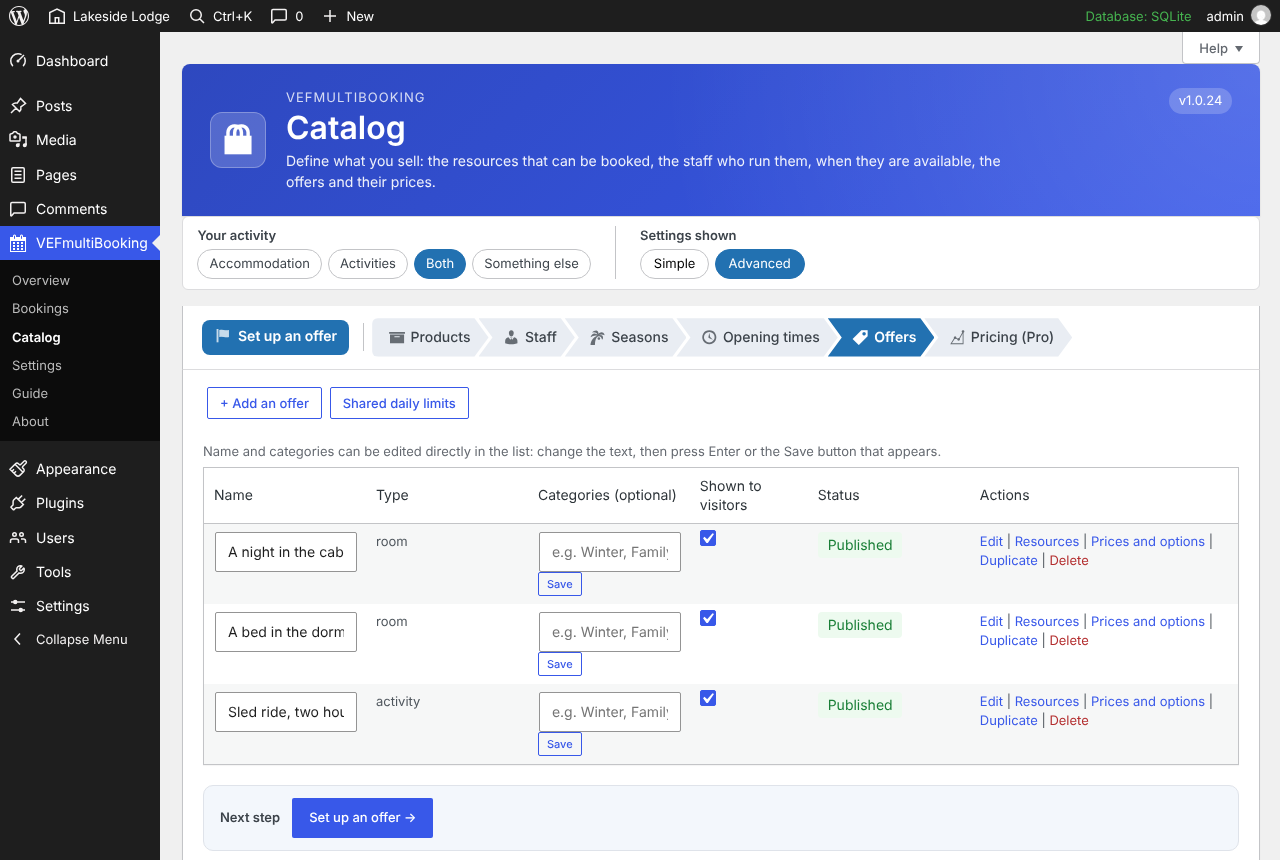
- Offers — what the customer actually buys: one or several resources, a price, optional extras.
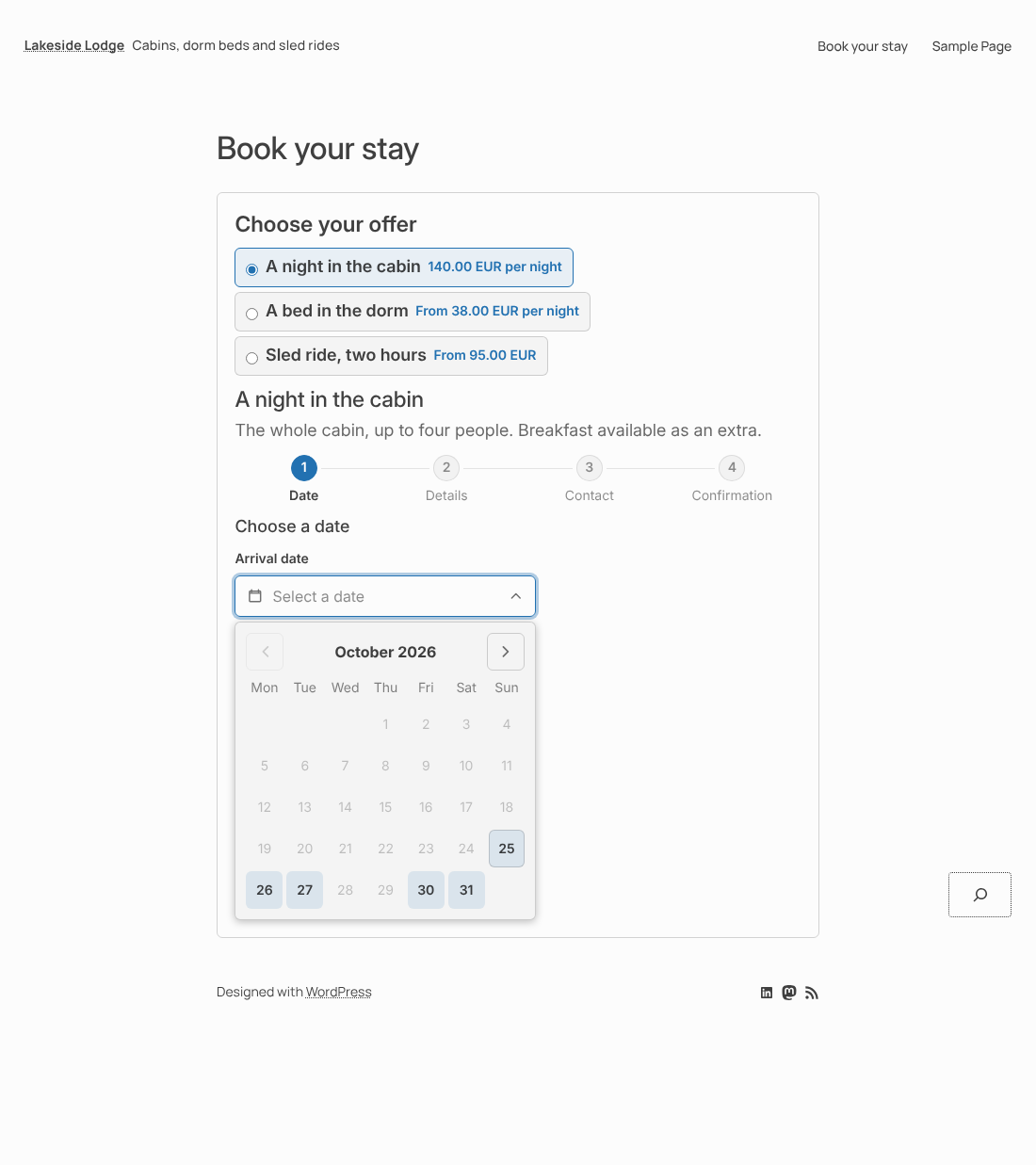
- Booking block — one complete module on your page: the visitor ticks an offer and the form adapts to it, up to the payment.
A getting-started guide inside the plugin walks you through these four steps.
Built so that places are never sold twice
Online and manual bookings go through the same capacity engine. A spot is held for a few minutes during checkout, then converted into a confirmed booking, and released if the visitor leaves. The number of places a single visitor can hold at once is limited. You stay in control: you can add, move or cancel any booking by hand, and when you enter one yourself, none of the visitor rules holds you back.
A simple, modern booking form
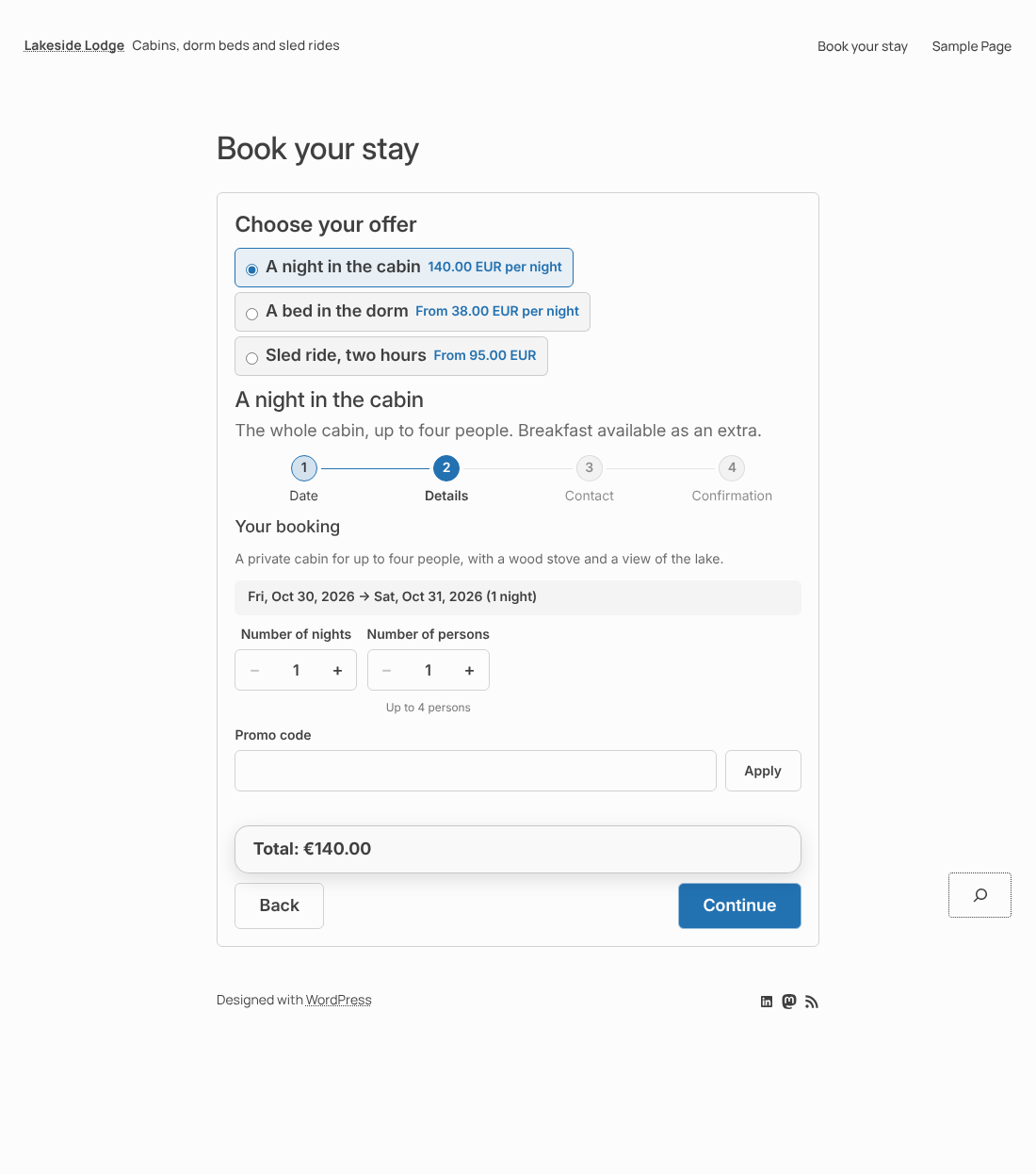
- Dates in a small calendar field where only the days that can be booked are enabled; − and + buttons for numbers.
- A cart: a visitor can book several offers in one go (a night, then a sled ride), gives their details once, pays once and receives a single e-mail. They are warned, never blocked, when two bookings take place at the same time.
- Optional extras with five pricing modes, chosen directly in the form.
- Questions for the visitor, owner validation when you want to approve a booking before it is confirmed, and shared daily limits across several offers.
- It follows your theme: its fonts and heading sizes by default, and it adapts to every screen size.
Payments
Stripe (hosted Checkout page) and PayPal, with separate test and live keys, so you can try the whole flow without charging a card. One currency per site. No card data is stored or handled by the plugin. Without any key, bookings are recorded and you settle the payment with the customer yourself.
For page builders
Native blocks for the block editor, modules for Divi 5 and widgets for Elementor. All three share the same rendering and the same visual settings (colors, corner roundness, spacing, field style, shadows, layout), set per block with the result shown at once. A Style tab sets the default look of the whole site.
Everything you need to run it
- Dashboard with a getting-started list.
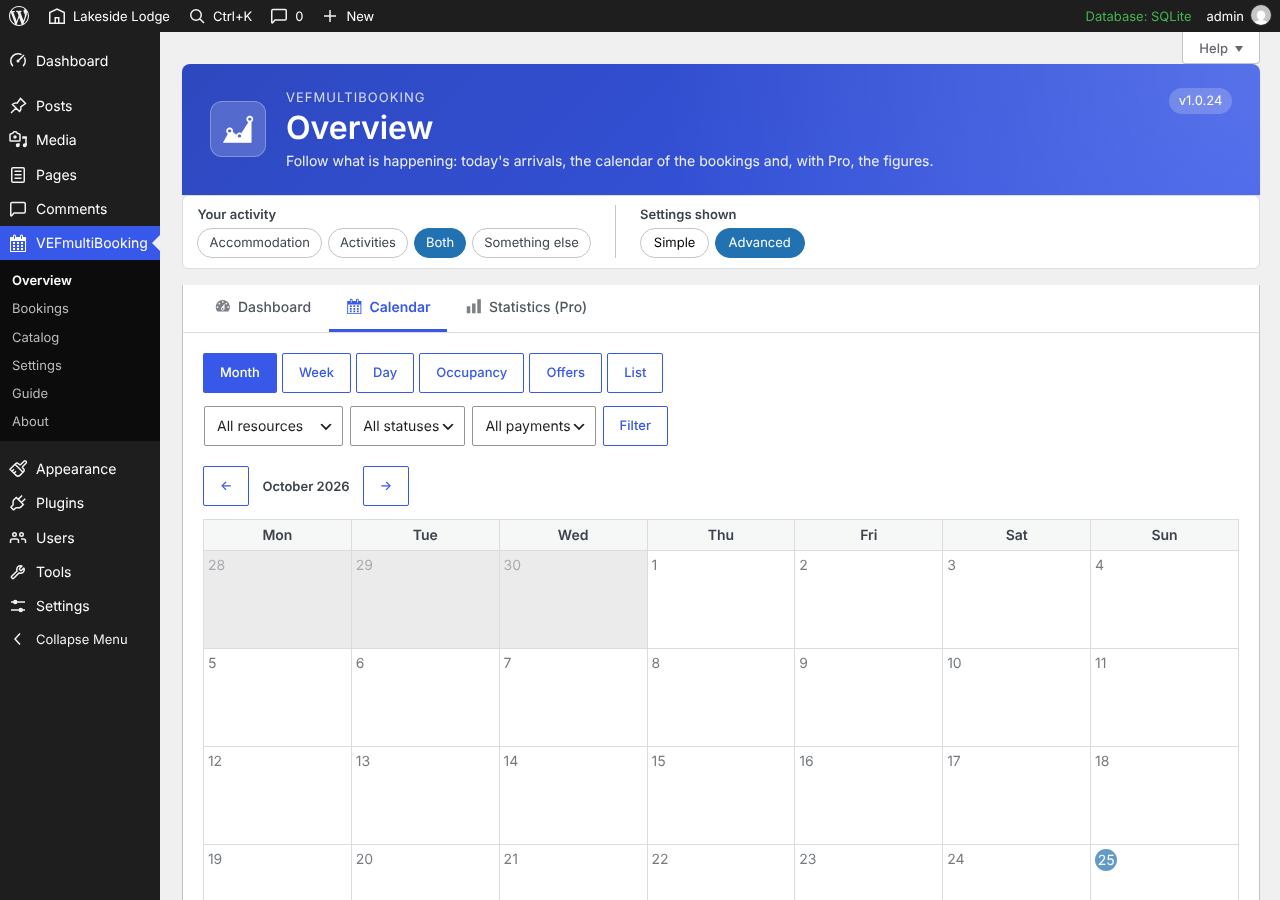
- Month, week, day and occupancy calendar, with drag-and-drop rescheduling.
- Bookings and customers, with customizable automatic e-mails to your customers and to you.
- Help on every screen, a getting-started guide, copyable diagnostic information and a support form.
- Multilingual sites: the texts you type can be translated with Polylang or WPML.
Your customers’ data, and your own peace of mind
- Personal data can be exported and erased with the WordPress tools; an erased customer keeps no name, e-mail, phone or address, while the bookings and payments stay as anonymous accounting records. A suggested text for your privacy policy is provided.
- Booking numbers are long and random, so a confirmation or payment page cannot be reached by guessing a number.
- Payment confirmations are checked with the signature of Stripe and PayPal.
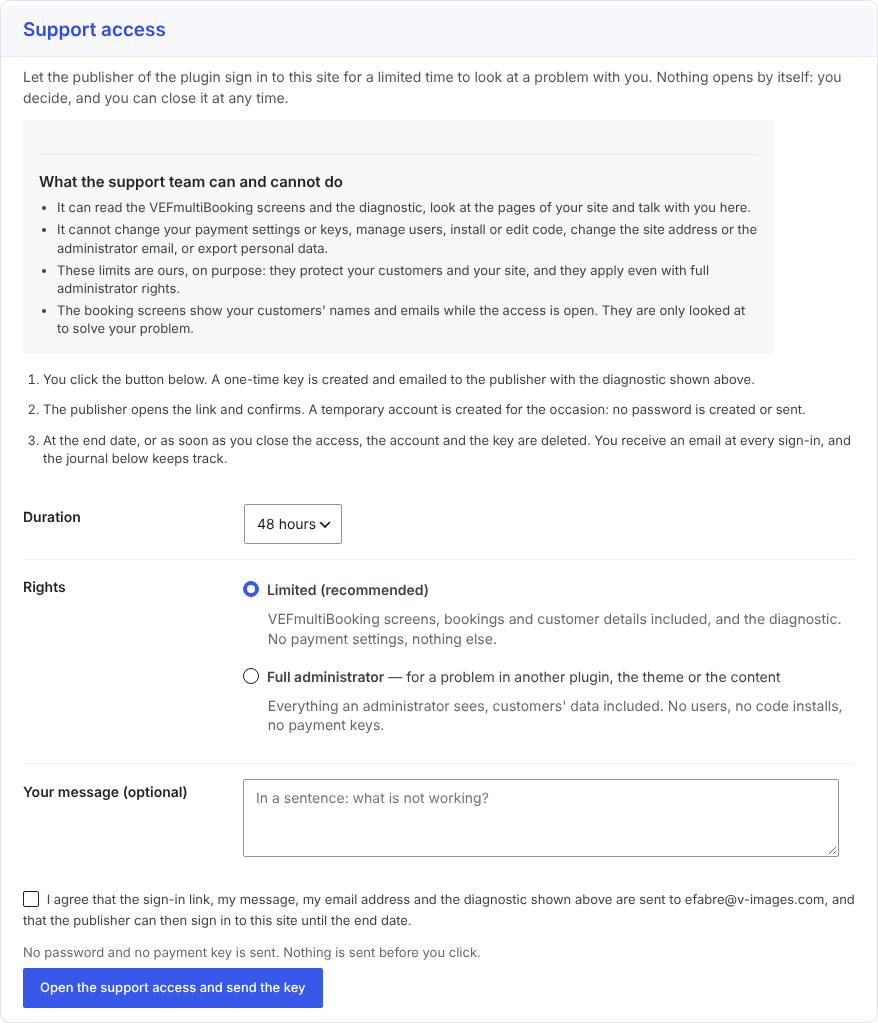
- If you ever need help, you can open a support access with a single click: temporary, limited to what support needs, closed whenever you want, and never started without you. You see what it can and cannot do before you open it.
Free or Pro?
The plugin is complete on its own. VEFmultiBooking Pro is a separate paid extension that adds what brings in more, saves time or helps you grow, without taking anything away from this plugin:
- Sell better — pricing rules (season, occupancy, length of stay, family rates), promo codes, deposits and payment schedules.
- Save time — reminders and scheduled e-mails, a customer portal, a waitlist for full offers.
- See and grow — statistics and accounting exports, groups with a shared payment schedule.
- Move your data — import and export of the catalogue, customers, bookings and settings as CSV files, with a check before every import.
Other plugins by V-IMAGES
- VEFmusic — a complete plugin for a band or a musician’s site: audio player, music and merchandise sales, concerts and tickets.
- VEFpressKit — a press kit for any activity, published on your site and downloadable as a PDF or a zip.
- VEFflipBox — a box that turns over (front and back) on hover, for Divi 5, the block editor and Elementor.
More about the plugins, and support: v-images.com.
External services
This plugin connects to the following external services.
- Stripe — only when the site owner enters Stripe keys in Settings. Used to create payment sessions (Checkout Sessions) and refunds through the official API (api.stripe.com). Sent: amount, currency and booking number; no full card data is ever stored or sent by the plugin (the customer pays on a page hosted by Stripe). A Stripe webhook, whose signature is verified, confirms payments. Terms: https://stripe.com/legal — Privacy: https://stripe.com/privacy
- PayPal — only when the site owner enters PayPal credentials in Settings. Used to create orders and refunds through the official API (api-m.paypal.com, or api-m.sandbox.paypal.com in test mode). A PayPal webhook, verified through PayPal’s official signature verification API, confirms payments. On the booking page, and only when the visitor chooses to pay with PayPal, the official PayPal JavaScript SDK is loaded in the visitor’s browser (www.paypal.com/sdk/js). Terms and privacy: https://www.paypal.com/legalhub
- Optional free license (V-IMAGES, v-images.com, the plugin’s publisher) — only if you ask for it (VEFmultiBooking > About > Licenses and versions): nothing is sent until you fill in the form and tick the consent box. The free license unlocks nothing — the plugin works exactly the same without it; it only lets the publisher send you news and offers, and identify your site when you ask for support. When you register, the following is sent to the V-IMAGES licensing service (REST route /wp-json/vefls/v1/free-license on v-images.com): the email address you typed, the exact consent text you agreed to, your site’s URL, the VEFmultiBooking version and your site’s language. While you are registered, each time you open the About or Dashboard screen the plugin checks the registration status (on each of those screens until you confirm by email, then once a week), sending your license key, your site’s URL and the VEFmultiBooking version. When you unregister, the plugin asks the service to delete your data.
- Support & feature requests (email) — only when you explicitly fill in and submit the form (VEFmultiBooking > Diagnostic and support tab): your reply-to email address, the subject and message you typed and the diagnostic information shown on that screen (site URL, VEFmultiBooking and VEFmultiBooking Pro versions, WordPress, PHP and MySQL versions, active theme and plugins, free license key if any) are emailed to the publisher at efabre@v-images.com.
- Support access (email, optional) — only when a site administrator clicks “Open support access” (VEFmultiBooking > Diagnostic and support tab). Nothing happens otherwise. The click creates a time-limited access (24 hours to 7 days) and emails a single-use sign-in link to the publisher at efabre@v-images.com, together with the diagnostic information shown on that screen and the optional message you typed. The access can be closed at any time, ends by itself on the chosen date and is removed when the plugin is deactivated. Only a hash of the key is stored on your site. While the access is open, a conversation between you and the publisher’s support team is kept on your site only, and erased when the access is closed; when you write in it while the publisher is not looking at it, a short email with your message is sent to the same address (at most one every five minutes). A journal of the last 50 events (opening, sign-ins with IP address, closing) is kept in your database, can be emptied at any time from the same screen, and is removed when the plugin is deleted.
These services are provided by V-IMAGES (Eric Fabre): Terms of use, Privacy policy.
سکرین شۆتەکان


دامەزراندن
- Install the plugin from Plugins > Add New, or upload the
vefmultibookingfolder to/wp-content/plugins/. - Activate it, then open the VEFmultiBooking menu.
- Follow the Guide tab: create a resource, set its availability, create an offer, add the “VEF Booking” block (or Divi 5 module / Elementor widget) to a page, then enter your Stripe and/or PayPal keys in Settings.
پهد
-
What can the support team do with a support access?
-
Only what you chose to open, for the time you chose, and nothing starts without your click. With the default limited rights the support team reads the VEFmultiBooking screens and the diagnostic, looks at the pages of your site and talks with you in the Diagnostic tab. Even with full administrator rights it cannot change your payment settings or keys, manage users, install or edit code, change the site address or the administrator email, or export personal data. The booking screens show your customers’ names and emails while the access is open; they are only looked at to solve your problem. You can close the access at any time, it ends by itself on the date you chose, you receive an email at each sign-in, and the conversation is erased when the access is closed.
-
How do I export or erase a customer’s data?
-
Use the WordPress tools: Tools > Export Personal Data or Erase Personal Data, with the customer’s email address. The export gives the customer record, their bookings and their answers. The erasure removes the name, email, phone and address and the answers to the questions; the bookings and their payments are kept without any personal data, because their dates and amounts are accounting records.
-
Do I need a license or an account?
-
No. The plugin is free and complete. An optional free license is offered on the Licenses and versions tab: it unlocks nothing and changes nothing in the plugin, it only lets the publisher keep in touch with you (news, offers) and answer support requests faster.
-
What does VEFmultiBooking Pro add?
-
Pro is a separate paid extension. It adds pricing rules (season, occupancy, length of stay, family rates), promo codes, deposits and payment schedules, reminders and scheduled e-mails, a customer portal, a waitlist, statistics with accounting exports and groups with a shared payment schedule. Everything in this plugin stays free and keeps working without it. The About screen has a comparison table.
-
Which page builders are supported?
-
The WordPress block editor, Divi 5 and Elementor. No shortcode is needed.
-
Can I use several currencies?
-
One currency per site, set in Settings before taking real bookings. Prices are never converted between currencies.
-
Can I test payments without charging a card?
-
Yes: enter your Stripe test keys and/or PayPal sandbox credentials and keep the test mode selected.
پێداچوونەوەکان
هیچ پێداچوونەوەیەک نەنووسراوە بۆ ئەم پێوەکراوە.
بەشداربووان و گەشەپێدەران
“VEFmultiBooking” نەرمەواڵەیەکی سەرچاوە کراوەیە. ئەم کەسانەی خوارەوە بەشدارییان تێدا کردووە.
بەشداربووان
“VEFmultiBooking” وەرگێڕدراوە بۆ 1 زمان. سوپاسی وەرگێڕەکان دەکەین بۆ بەشداریکردنیان.
“VEFmultiBooking” وەربگێڕە بۆ زمانەکەی خۆت.
دەتەوێت بەشداربیت لە گەشەپێدان؟
گەڕان لە کۆدەکەدا بکە، سەیری تەمارگەی (SVN) بکە، یان بەشداربە لە ڕووداوتۆماری گەشەپێدان لە ڕێگەی (RSS).
ڕووداوتۆمارگەریی گۆڕین
1.0.32
- Improved: lighter in-plugin help. The Guide and About screens now give a short text for each step and feature, with a link to the full help online. Fewer texts to read and to translate; the details stay in the full help online.
1.0.31
- New: the options of a booking (breakfast, equipment…) can be chosen for each room or product separately, and an option charged per person can cover only some of the persons of the line.
- New: the day and time of a booking appear in the booking details, the lists and the e-mails.
- Fixed: a night with no arrival time can still be booked in the evening, even with a short minimum notice.
- Fixed: a slot that has already started, or that is too close for the minimum notice, is shown as closed instead of full, and a slot already started today no longer counts as free.
- Fixed: browsing the availability calendar month by month no longer scrolls the page back to the top.
- Fixed: the “Open the checklist” link of the setup screen now opens the checklist.
- Improved: alignment of the order field and the “For each person” tick in the questions table.
1.0.30
- Improved: lighter translation work. About thirty long help texts are shortened (same information, fewer words) and a few duplicate strings are merged (the “+ …” buttons, “Site default”, “Error”).
1.0.29
- New: each product of a multi-product offer (each room, for example) has its own arrival date, so people of the same order can arrive or stay on different days. The price and the availability are checked for each line.
- Fixed: the questions asked for each person (an allergy, for example) are now asked for every person of every product, not only for as many people as the fullest product. Each question shows the name of its product, and the name also appears in the booking screen and in the e-mails.
- Fixed: in the availability calendar, a day with nothing to book (no slot planned, a weekend…) now has the grey striped background and the “Closed” mention, like a day closed by the webmaster.
1.0.28
- New: the diagnostic compares the PHP version with the release of its branch that contains the fixes for CVE-2026-109618 and CVE-2026-109619 (8.2.35, 8.3.36, 8.4.27, 8.5.12) and says so when it is older. The message is cautious: some hosts apply these fixes without changing the version number.
1.0.27
- Fixed: booking several products of one offer (several rooms, for example) now lets the visitor set the number of persons and the number of nights for each product, with the maximum number of persons next to its name. The total adds up the lines.
- New: the prices shown on the offers before the visitor chooses can be set for each block (and as a site default in the Style tab): from the lowest price, a range, every price (one line for each category or row of the table), or no price at all.
- Changed: the line “No preference” of a multi-product offer is now “Assign automatically”, with the same two settings (nights and persons) as the other lines.
- Changed: the help of each admin screen is now a short summary with a link to the full help on the publisher’s site, so there are far fewer texts to translate. The Guide keeps its steps and blocks.
1.0.26
- New: the “Set up an offer” guide is reorganised in three phases (the product, when, selling), with a board showing every product and offer and its next step.
- New: points to correct or to check are shown on each step, on the board, in the last check and on the overview: missing prices, dates nobody can book, not enough staff, overlapping prices or seasons, and more. They never block anything.
- Changed: the Staff step is marked “Not needed” for a product that needs no staff.
1.0.25
- Changed: screenshots added to the plugin page.
1.0.24
- Changed: the plugin page presents the possibilities of the plugin in more detail (what can be offered, the booking form, the protection of the customers’ data).
1.0.23
- New: the journal of the support access can be emptied from its card (one line remains to record that it was emptied).
1.0.22
- Security: new booking numbers are longer and drawn with a secure random generator (for example VEFMB-2026-K7QH-3MXD-9WTR), so that the confirmation and payment pages cannot be reached by guessing a number. Numbers already given keep working.
- Security: a visitor can no longer keep an unlimited number of places on hold; the holds released or expired free the allowance again (filter
vefmb_max_active_holds). - Security: booking with the email address of an existing customer only completes the customer’s record (name, phone, address left empty); it never replaces what is already saved.
- Security: a payment page replaces the previous one of the same booking, so two open windows can no longer charge the same booking twice; a PayPal payment is refused when the booking is already paid, and a second charge is recorded in the booking’s history.
1.0.21
- Security: a Stripe payment is settled only when Stripe reports it as paid and the amount and the currency match the booking; delayed payment methods are handled when the money arrives; two events arriving together can no longer settle a payment twice, and a refunded payment can no longer come back to “paid”.
- Security: a cart can no longer become two bookings when two requests arrive at the same moment.
- Security: the confirmation page limits failed booking-number lookups like the rest of the plugin, and the number of bookings that can be started for the same email address in an hour is limited.
- Security: leaving the phone or the address empty in a new booking no longer erases those saved for an existing customer; the browser session token uses secure random values.
- New: customers’ personal data can be exported and erased with the WordPress tools (Tools > Export Personal Data / Erase Personal Data), and a suggested text for the privacy policy page is provided. An erased customer keeps no name, email, phone or address; the bookings and their payments stay, anonymous, as accounting records.
- Changed: the Guide, About and contextual Help screens describe the support access, the conversation and the limited rights.
1.0.20
- New: the Diagnostic lists every extension of the site, read-only: active, inactive and must-use ones with their version, and the updates WordPress already knows about, and the pages that carry a VEFmultiBooking block (title, status and address). A support access therefore does not need the Extensions screen.
- New: a conversation between the webmaster and the support team while a support access is open, with the possibility to ask the webmaster for an action only he can do. The messages stay on the site and are erased when the access is closed.
- Security: the secret keys of Stripe and PayPal are no longer printed back in the settings page (an empty field keeps the saved key, a box removes it); the support account can never change the payment settings, manage users, install or edit code, save unfiltered HTML, export personal data, or change the administrator email, the default role, the registration option or the site address; the sign-in link can now be used by one request only, even when several arrive at once; its page cannot be shown inside a frame.
- Changed: the dates of the support access (end date, sign-ins, journal) follow the date and time format chosen in the site settings.
1.0.19
- New: “Support access” in the Diagnostic and support tab. One click opens a time-limited, revocable access for the publisher’s support team and emails the key. Limited rights by default, a journal of events, an email to the site administrator at each sign-in, a single-use sign-in link. Nothing is opened unless you click.
- Fixed: the column title of the features table no longer puts “(free)” after the plugin name.
- New: the Diagnostic is more complete (memory limit, server, language, permalinks, PHP extensions, installed VEF plugins, recent VEF log lines) and is shared by the screen, the support form and the support access email.
1.0.18
- Fixed: a resource was marked “Ready” as soon as it had an availability rule, even when no date could be booked, so an accommodation could be missing from the booking block without any explanation. “Ready” now applies the rules of the booking form (free nights in a row, open periods, arrival days, minimum nights), and otherwise says why.
- New: a “Bookable” column in the products of an offer shows, for each product, whether visitors can book it and, if not, the reason.
- Changed: the number and “who is coming” fields of the booking form are centered under their label.
1.0.17
- Fixed: the round badges of the confirmation and of the messages take their own color (green or red) instead of the text color. The check mark was hard to read when the theme gave the title a red or green color. The symbol turns light or dark by itself, and the badges follow the high contrast mode.
- New: “Success color” and “Error color” settings, for the whole site (Style tab) and for each block in Gutenberg, Divi 5 and Elementor.
- Fixed: every color setting now accepts a color of your palette or a Divi 5 global color, not only a typed value.
1.0.16
- Changed: in the availability calendar, closed days are now grey with fine stripes (in the legend, on the site and in the administration) instead of a reddish tint, so they are clearly different from the available days.
1.0.15
- Changed: the menu now has two separate pages for the help: “Guide” (the guide to Free and Pro, and the diagnostic and support) and “About” (the installed version and the licenses and versions of Free and Pro).
1.0.14
- New: “Add another offer” now lets the visitor choose another offer, even in a booking block that shows a single offer. A new setting on each booking block (Gutenberg, Divi 5, Elementor) decides what is offered: every published offer (the default), only the offers the block shows, or a selection.
- Changed: the “Help” page of the menu is now called “About”, and its first tab “Guide”. The former About tab and the license are now one tab, “Licenses and versions”: it shows the installed version and the optional free license, and, with VEFmultiBooking Pro, the Pro license, updates and versions.
- Fixed: after the page is reloaded, the bar showing the offers waiting in the cart now reappears at once in a block that shows a single offer.
1.0.13
- Changed: messages, the total and the confirmation no longer use a coloured edge. They sit on a translucent, blurred panel that lets the page background show through and follows your text colour, with a round status icon (red or green symbol). The admin intro, help and schedule rows lose their coloured edge too.
1.0.12
- New: the booking form says how many persons a date accepts (for example “Up to 6 persons”) next to the field, before the visitor types a number.
- Fixed: each booking keeps the name typed with it, so the name of an earlier booking no longer changes when someone else orders with the same email address.
- Fixed: a single price is shown as it is (“60.00 EUR”); “From” only appears when the price can vary.
- Fixed: deleting or switching off an opening time left its future slots offered on the site. They now go with it (the ones that are booked or edited by hand stay), and the ones left behind by earlier deletions are removed when you update.
- New: a break (lunch…) can be set when a start repeats during the day, with a live preview of the departures.
- New: close a day between two hours only, instead of the whole day.
- New: select several slots and remove, close, reopen or change their capacity in one go.
- New: in the Simple display, opening times and closures are written in plain words and can be removed in a click.
- Improved: in the Simple display, the resource and offer lists show plain sentences instead of technical columns, the guide shows a progress bar, and People and Seasons start with one clear sentence (the full text is one click away).
- Improved: long explanations under a field keep their first sentence in view and open with a “?” button; the sections of the forms are cards.
- Improved: in the Catalog, the “Set up an offer” guide tab stands apart and the tabs it commands are drawn as arrows from left to right, like a path; and its progress counts the offers visitors can really book.
- Improved: the Divi 5 visual builder preview loads its styles with the WordPress enqueue functions, and the plugin links of the readme and of the plugin header point to existing pages.
- Improved: in the calendars, a day you closed is shown as “Closed” (red), apart from “Full” (orange) and “Available”.
- Improved: the display bar lets you switch between Simple and Advanced on every screen; the label used for packages can be adapted to your business.
1.0.8
- New: for appointments (massages, lessons…), a rule can repeat a start every X minutes until a last start time, instead of typing every start time: from 09:00 every 30 minutes until 15:30 creates the 14 departures at once.
1.0.7
- Fixed: closing a day or a period in “Exceptions and blocks” now really closes its slots (including the slots created later), and deleting the closure opens them again. Closures recorded before this version are applied when you update.
- Fixed: an offer that sells a package was wrongly reported as “no open slot”.
- Fixed: a package can no longer be booked on a day when the guide of one of its activities is absent.
- New: the choice of what you offer and the Simple / Advanced display are now at the top of every admin page, and a Simple / Advanced switch is in the product, offer, price and opening-times forms. Optional settings are hidden in Simple, never removed.
- New: the word “Package” can be changed in Settings (for example “Organised stay”).
1.0.6
- New: when an offer sells several products (for example identical rooms), the visitor can tick one or more of them, or leave a number to the first free ones with “No preference”. Each one becomes a line of the cart, and the total shows how many were chosen.
- New: a guided set-up, “Set up an offer” in the Catalog, takes you step by step through the resource, the staff, the seasons, the availability, the offer, the prices and the publication, always on the usual screens, so everything stays editable afterwards.
- Changed: the slots of a resource are shown as a month calendar (one click on a day to see, close or change its slots), with the full list still available.
- New: choose what you sell (accommodation, activities, both, something else) and a Simple or Advanced display, in a bar at the top of every admin page. The menu words follow the choice, nothing is deleted when you change it.
- New: adding a resource starts by choosing its kind (accommodation, activity, package, other); the settings that matter for it come first and the others are folded under “Advanced settings”.
- Changed: the “Availability” tab is now called “Opening times”, and a resource shows its opening times with a direct link to change them.
- New: seasons, named once and chosen in the opening periods and in the prices.
- Fix: the tick boxes of the booking form are no longer stretched like text fields.
- Changed: dates in the admin lists (recurring rules, bookings, customers, slots, absences) follow the date format of the site.
1.0.5
- Fix: wording of a French help text.
1.0.4
- New: an offer sold by the night can link several resources, for example identical rooms. Once the dates are chosen, the visitor picks one of the free ones, or “No preference” to take the first free one; the price is the offer’s. When you enter a booking yourself, you can pick the resource or leave it on automatic.
- Changed: the “Going further” guide follows the order of the admin tabs, and each card links to its tab.
1.0.3
- Changed: a section title that follows other content has room above it, so add-on screens match the others.
1.0.2
- Changed: PayPal and Stripe are two tabs side by side in Settings, like in the other VEF plugins, with a check mark on the tab whose keys are filled in, so both payment methods are plainly visible.
- Changed: the titles of the admin sections use the accent color of the administration color scheme, like the page header, so that each group of settings stands out.
- New: when several VEF plugins are active on a site, their menu entries sit side by side between two separators instead of being scattered. A menu editor plugin keeps the last word, and the “vef_group_admin_menu” filter turns the grouping off.
1.0.1
- English source texts; translations come from translate.wordpress.org.
- Fix: the block options script had no translations loaded in the editor.
- Source texts harmonised (email, ellipsis). No database change.
1.0.0
- Initial release on WordPress.org.